Simple Setting
It allows you to build an environment with a single mouse click, and yet with amazing flexibility.
One-Click Configuration
Section titled “One-Click Configuration”Simple Setting option is ideal option for businesses whose sales compensation plan is relatively simple and not required to build complex relationships among data. Furthermore, when the time is of essence to roll out your sales compensation plan within a short period of time, Simple Setting will enable you to launch the application quickly and easily.
Login > Setting Page > Simple Setting

Even though it is called Simple Setting, it still gives you the flexibility at a great extent in labeling the tables and attributes.
At a first glance, you will notice that Compensation Calculation Period, Payees, and Transactions have already been populated. However, you are more than welcome to customize them according to your needs.
Compensation Calculation Period
Section titled “Compensation Calculation Period”Compensation Calculation Period determines the periodic cycle of commission calculation. However, the compensation calculation period does not necessarily have to be the same as the pay period in your organization. For example, your pay period is bi-weekly, and you may still want to set the compensation period as Monthly. It simply sets the period how often you will measure the sales performance.
Through the Simple Setting, you can easily set up the system on a monthly basis.

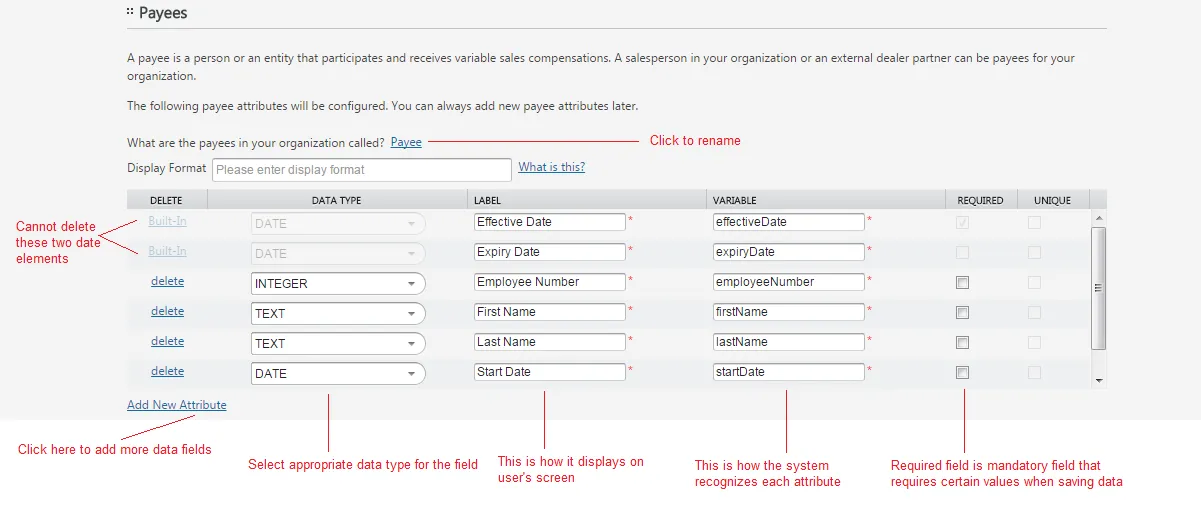
inLOGIC defines Payee as a group of people who are participating into the sales compensation plans, hence potentially eligible for variable incentives for their own sales activities and/or their subordinates or colleague’s. Also, payees can be the suppliers, business partners, or external vendors you are doing business with. Whether you call them Payee or Sales Reps, we make it easier for you to adopt your unique organizational culture and language that is broadly accepted at every level in your organization.
Transaction
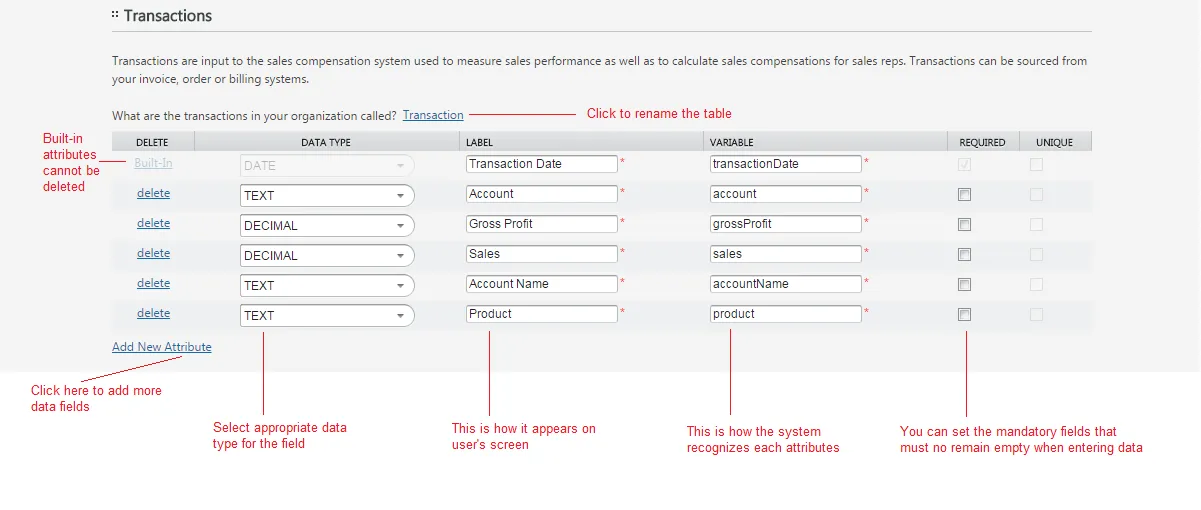
Section titled “Transaction”As you did for Payee, you can customize Transaction, too. Depending on your preference and requirements, you can name the table differently as well as the attributes.
Warning:
- Click Done button when you are finished
- When Save Confirmation window pops up, click Yes.
Once saved, you are forwarded to the general Setting page, and from there you can further customize your environment through Advanced Setting options.